How to open a website on a Samsung TV, and get a long address into Samsung Internet without the remote
2026-10-17
This post contains affiliate links. As an Amazon Associate, ZAGO.TO earns from qualifying purchases.
Short version: the browser is called Internet, it ships with the set, and the slow part is typing. Your phone can take over that part.
A recipe, a church livestream page, a school portal your kid needs on the big screen. How to open a website on a Samsung TV sounds like one click, until the on-screen keyboard shows up.
These steps fit recent Samsung smart TVs running Tizen. Labels drift a little from year to year, so match the words rather than the exact position.
Contents
- How to open a website on a Samsung TV: find Internet
- The keyboard on the screen
- SmartThings and real keyboards
- A long link that lives on your phone
1. How to open a website on a Samsung TV: find Internet
▲ Samsung names its TV browser plainly, which is why people miss it
On the remote, tap the button with the house icon. The Smart Hub strip rises from the bottom edge.
You are looking for Internet, usually a blue round icon. People type "Samsung Internet" or "Chrome" into the search and find nothing, because the label on the TV is just the one word.
Not in the strip? Open Apps, use the magnifier, or scroll right to the end. No download is needed, since every recent set has it built in.
Do not confuse it with Samsung TV Plus, the free channels app. That one plays shows, it does not open web pages.
Pin it to the strip from the app's options menu. Next time it sits two clicks from the couch.
2. The keyboard on the screen
Pick the address field at the top. A grid of letters fills the lower half of the picture, and you walk across it with the round directional pad.
Five or six letters are bearable. A link stuffed with slashes, question marks and random strings is another matter.
- Search the name instead. Enter a few words, then choose the site from the results list.
- Talk to it. Remotes that have a microphone button take spoken searches, good for names, useless for strings of random letters.
- Save the page. Once you get there, add a bookmark, so tonight's struggle happens only once.
3. SmartThings and real keyboards
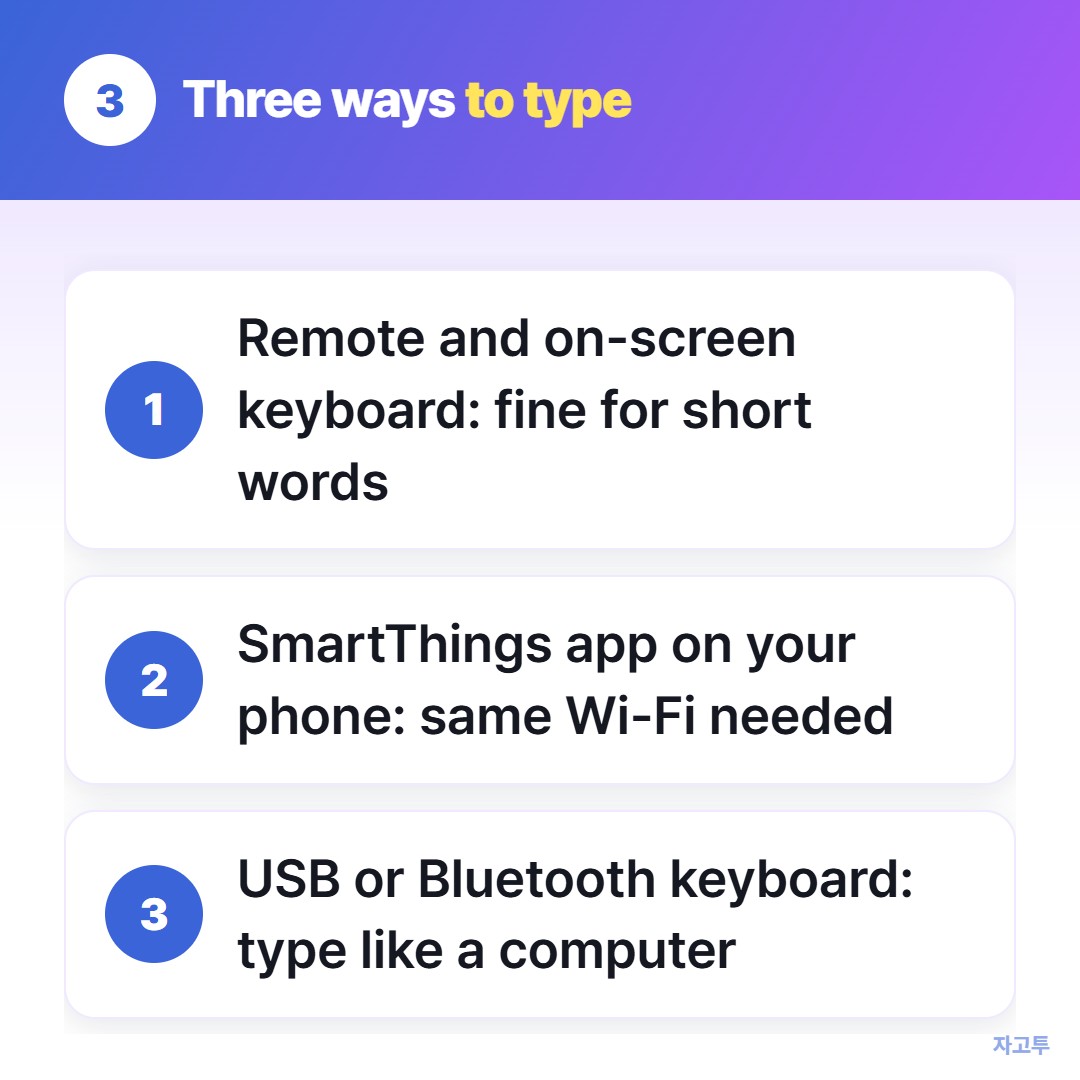
▲ Arrow keys are the slowest of the three
Samsung's own SmartThings app turns a phone into a remote. With a text field active on the TV, letters you enter on the phone land in the TV's field.
Both need to share one Wi-Fi network, and you add the TV inside SmartThings the first time. After that it remembers.
A wired USB keyboard in a port on the back works on many models, and some pair with Bluetooth ones. It is the most comfortable choice if you browse on the TV often.
Different brand in the bedroom? LG TV web browser handles webOS, and How to type on a smart TV covers the rest.
4. A long link that lives on your phone
Usually nobody remembers the address. Somebody texted it, and it runs on for two lines.
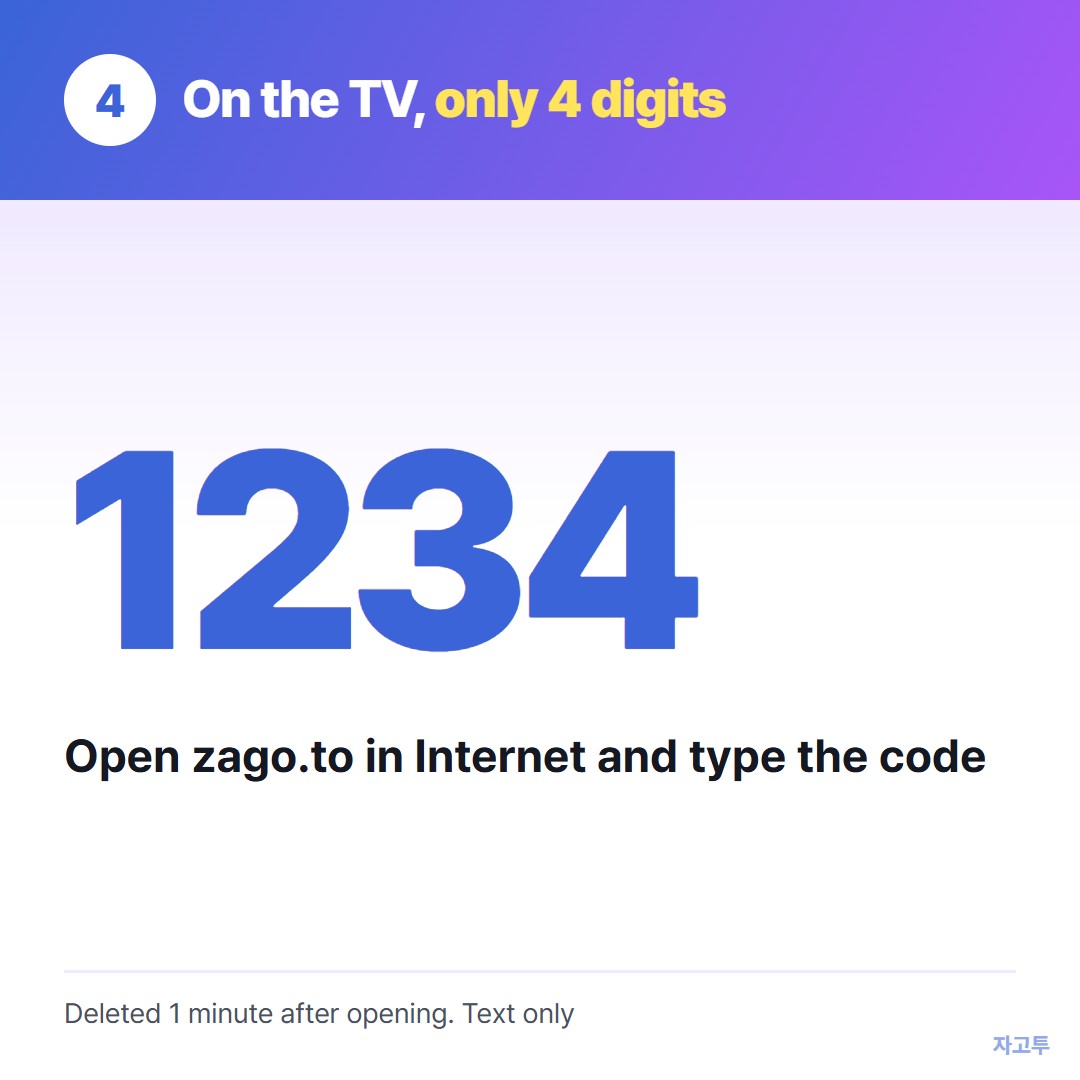
▲ An example code. Real codes are random
Copy it on the phone and drop it into ZAGO.TO, which hands back four digits.
In the TV's Internet app, go to zago.to, punch in those digits with the arrow pad, and the full link shows up to click.
What it will not do: carry a movie, a photo or any other file, since it only handles text. If nobody opens it, it is gone in 1 minute. Once opened, it is gone 1 minute later, with no second look.
Nothing is encrypted in the browser yet, which means our server can read the text. Use it for a public page, never for a streaming login.
For playing a video, casting or Smart View mirroring is often the better tool. Send link to TV from your phone sorts the options by kind of link.
Before you close the browser
- Log out of anything you signed into, because the family TV is shared
- Keep Internet pinned if you plan to come back
- A video page stuck loading? Check for a TV software update, or try the site's own app